Exporting Entire Conversation
The Claude to PDF, Word and Google Docs extension lets you export the entire conversation in just one click. This includes the ability to:
- Export both user prompts and Claude responses
- Or export only the Claude responses, omitting the user input
Exporting Entire Conversation with User Prompts
- Open any Claude conversation at claude.ai .
- Look at the top right corner of the conversation window.
- Click the Word, PDF, or Google Docs button to export the entire conversation.
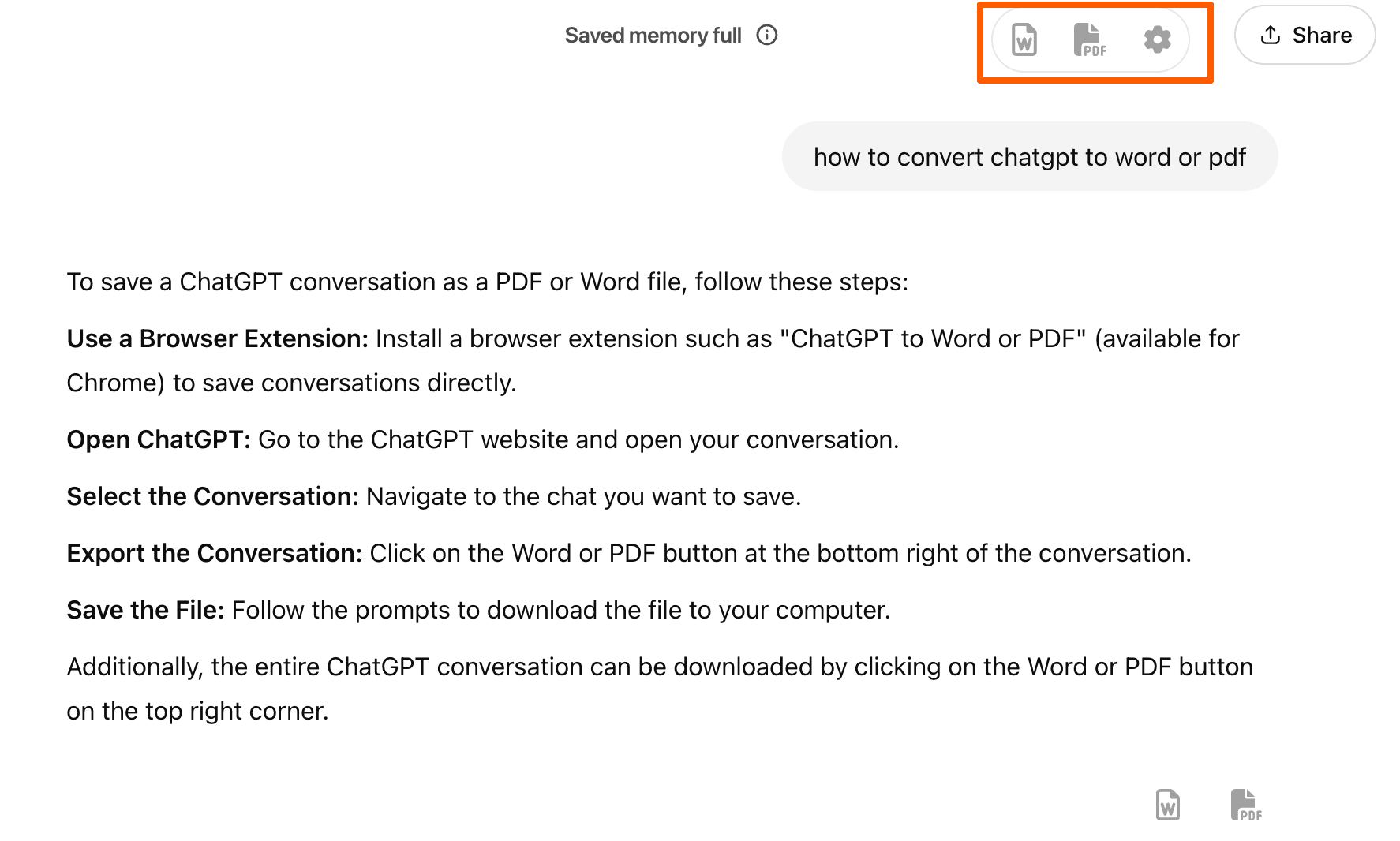
By default, both user prompts and responses will be included.
Export Only Claude Responses from Entire Conversation
If you prefer to export only the Claude responses, follow these steps:
- Click the Settings gear icon in the top right corner of the Claude conversation page.
- In the Settings popup, scroll to the Conversion Settings section.
- Enable the checkbox labeled “Export only Claude responses.”
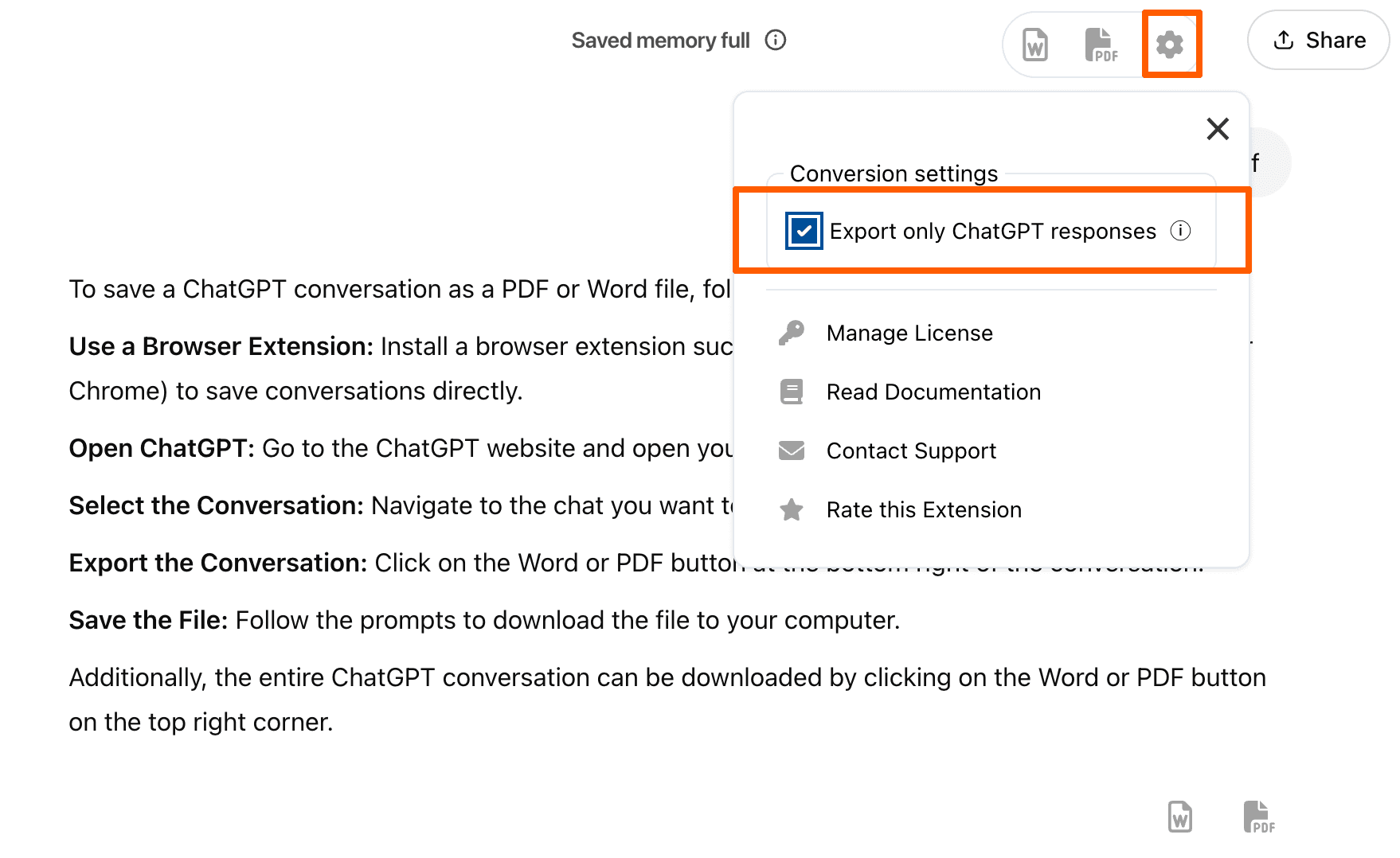
Note: Once enabled, this setting will be saved automatically and used as the default for future exports.
You can disable it anytime by returning to the same Settings window.
Tip: Use this option when you only want to archive or share the AI’s output without including your prompts or instructions.
Last updated on